

Twitch commands can bring your streams on Twitch to the next level and make it more enjoyable for you as a viewer or as a streamer! First of all, it will save you a lot of time when people are asking the same questions. Twitch commands can answer these too. Secondly, when you are a streamer that has moderators then they can use these commands to change things in your stream! Think about the title, the game you're playing, and more. Very helpful if you're switching from the game and would like to attract a new audience, for example.
As a streamer, it could be annoying to do everything yourself. All you want to do is play your favorite games or stream whatever you want to, whilst not having to worry about all the technical stuff. And as a viewer, knowing these Twitch commands will provide you with more information or it makes you able to interact with the stream even more.
For who are these Twitch commands?
These Twitch commands are for you as a viewer, streamer, broadcaster, or channel editor. I will go over them for each role separately so you know exactly which one you can use.
Note: some streamers make their commands. For example, with Nightbot or Streamelements which I’ll explain later. First, we'll go over the general commands that will work in any stream. They cover anything you'll like (you don't have to necessarily assign custom commands).

Twitch Commands For Everyone
Now, what are the Twitch commands everyone can use? A way that works, is typing ‘’/’’ in the chatbox that shows up a list of commands. But this is not a very handy way of doing it. Because not all the commands show up when you do that, and you don't want to scroll down a lot to find the thing you're looking for. When you know what's possible you can directly go after that command, making things much easier for you!
/mods
When you use ''/mods'' you will quickly see who are the mods in the stream. These people usually have a closer connection with the streamer and help the stream go flawless. Don't mess with a moderator, because they can ban you.
/vips
The same as for /mods, you can use ‘’/vips’’ to display all the VIPs for a specific channel.
/color {color}
Would you like to change the color of your username? Then you can type ‘’/color’’ and then behind the color you’d like to change to (Blue, BlueViolet, CadetBlue, Chocolate, Coral, DodgerBlue, Firebrick, GoldenRod, Green, HotPink, OrangeRed, Red, SeaGreen, SpringGreen, YellowGreen). You can also type in a corresponding hex value (#000000) after /color.
/block {username}
Now this ''/block'' Twitch command is not as powerful as when a broadcaster or moderator does it, but you can always do it for yourself. For example, to get rid of all the messages of someone who annoys you or spams too much (and the streamer or moderators don't do anything about it). Another way of doing this is by clicking the username of someone in the chat, then the three dots, and then Block (user).
/unblock {username}
Want to give someone a second chance? Then you can type ‘’/unblock’’ for the user that you previously added to the blocklist. Maybe the streamer or other viewers are responding to him or her, and you’d like to see what that person is saying again. You can of course also unblock this person by clicking the username and the three dots again.
/me {text}
‘’/me’’ is a fun Twitch command to use when you’d like to stand out from the crowd. When you use this before your text message, your text will be in italic. This gives you a higher chance of your message being seen.
/disconnect
When you use ‘’/disconnect’’ you will disconnect yourself from the chat server. Would you like to connect again? Then you can easily reload the page. I figured that Twitch is automatically reconnecting you to the chat after you used it too, making you enter the chatroom again.

/w {username} {message}
This Twitch command lets you send a whisper to someone else on Twitch, or in order words: you’ll send a private message. Then you’ll get in their private inbox and it makes you able to individually talk to that person. How you do this, is by typing ‘’/w’’ {username} {message}. So after /w, press space, type the username, press space, type the message.
@ {username}
When you use ‘’@’’ you can easily target someone in the chat. The person who’s targeted will see that clearly in chat thanks to a highlight. This helps to let the person know you talked or responded specifically to them. Type the username you’d like to target after @.
Reply to a message
Would you like to reply to a certain message? Then you can type @ {username}, press alt + enter, and then press alt + up/down to reply to a message. By using your up and down arrow keys you can scroll through everything that person said, and select the specific message you want to reply to.
Twitch Commands For Moderators & Broadcasters
Now we arrived at the Twitch commands for both moderators and broadcasters. So, these Twitch commands are only possible to use when you have a moderator role in someone’s stream or when you are the streamer yourself. A moderator can be noticed by the green sword icon. Especially for moderators, these Twitch commands are very helpful, as streamers usually don't put their time into typing in the chat.
/user {username}
If you want more specific information about a user, then you can type ''/user'' and then the username. Then, a card will show up that shows all the messages sent (you can view them when you click on it), the badges, the timeouts, when the account is created, options to gift a sub or to whisper, and more. Interesting is that you can also see how many timeouts or bans person haves. Doesn't this show something about their behavior? It could help you in your decision to ban a person or not.
/timeout {username} [seconds]
Do you want to teach someone a lesson? Or to show someone you’re the boss in the chat? By typing ‘’/timeout’’ and then the username of someone, you will automatically give that person a timeout for 10 minutes. If you’d like to change this time, you can add the optional [seconds] value. Another way of setting a specific time is by clicking the clock symbol after you clicked on someone’s username. There’s also a clock symbol in chat to do this. You can clear the timeout by typing ‘’/unban’’ or by overwriting the current timeout (by giving 1- second).
/ban {username}
This is where the banhammer comes in. It's an aggressive way of showing someone he or she is not allowed to be there in the chat. Maybe someone is not behaving correctly or insulting other viewers. Then, simply type ''/ban'' and the username, and that person will be permanently banned. You can also do this by clicking on the username, or the Cancel symbol directly in chat.
/unban {username}
Was your ban purely a joke? Or do you think the person will behave well again? Then you can type ‘’/unban’’ and the username of the person that’s banned. Now, he or she has all the right again to talk and to interact with the chat and the streamer. You can also use this Twitch command to undo a timeout.
/slow {seconds}
Is your chat exploding with messages? Then you can slow the chat down to allow yourself or the streamer to catch up and interact with these messages. How this works, is by typing ''/slow'' and then the number of seconds. This amount determines after how many seconds the system will accept messages. For instance, when you type ''/slow 15'' you enabled a 15-second slow mode for the chatroom. So every 15 seconds, the system accepts new messages.
/slowoff
With ‘’/slowoff’’ you will undo the slow mode in the Twitch chat. By the way, note that a streamer who’s a Twitch Partner can allow their subscribers to bypass the slow mode in the settings (dashboard, subscriptions tab). This could give your viewers an extra reason to subscribe but I would only recommend this when you constantly get lots of messages. Good to know: a Twitch Partner is someone who has an average of 75 viewers and meets some other requirements.
/followers
You can also use a follower-only mode by typing ‘’/followers’’. This means that only followers can chat in the stream. If you wish, you can even select how long the person has to be a follower. For example: ‘’/followers 30m’’, ‘’/followers 2h’’, ‘’/followers 1w’’, or ‘’followers 3mo’’. You can also type this out completely like ‘’/followers 30 minutes’’.
/followersoff
Would you like to disable the follower-only mode again? Then type ‘’/followersoff’’ in the chat.

/subscribers
Just as the follower-only mode, typing ‘’/subscribers’’ will only allow subscribers to chat with you and the other viewers. This means that someone needs to have a subscription to you or the streamer first. Ask yourself: do you want someone to pay first before they can talk with you? If not, I recommend doing this when your chatbox is overflowing with messages.
/subscribersoff
You can disable the subscriber-only mode by typing ‘’/subscribersoff’’ and then the chat can be used by everyone again.
/clear
Did something bad happen in chat? Or did someone spam or sent a lot of weird emoticons? You can easily clear this by typing ‘’/clear’’ to start with a new, clean and fresh chat. It can be possible that some users don’t see the wipe because they have certain add-ons in their browser.
/uniquechat
This is (as the name says) a unique Twitch command to moderate the chat. What does it do? When you type ‘’/uniquechat’’, you will prevent users from sending duplicate messages in the chat. This means that you will get rid of messages that are intended as spam.
/uniquechatoff
To undo the unique chat function, simply type ‘’/uniquechatoff’’.
/emoteonly
This is a fun way of having the viewers interact with you or the streamer. Now they are forced to only communicate in emotions when you typed ‘’/emoteonly’’. It’s especially interesting to do when there are custom-made emoticons to use. Then you can learn people to use them more (LOL).
/emoteonlyoff
I don't recommend having your chat on emote-only all the time. Eventually, all that counts is what they are saying, right? You can turn it off again by typing ''/emoteonlyoff’’.

Twitch Commands For Broadcasters or Channel Editors
The following Twitch commands can only be used by channel editors or broadcasters. I think it’s interesting to read as a viewer as well, so you know what a broadcaster (streamer) or channel editor is capable of. Let’s dive in!
/commercial {seconds}
When you are a Twitch Partner or affiliate, you can run a commercial for all of your viewers with ‘’/commercial’’. Then you can type a number (you can choose from 30, 60, 90, 120, 150, or 180 seconds).
/goal
When you type in ''/goal'' you can manage a follower or sub-goal. This helps the viewers to see what the goal is, such as ''help me get a mic!'' and you can determine your own goal.
/prediction
A fun way of getting more entertainment for your chat is to use a prediction. By typing ''/prediction'', you can let your viewers choose from possible outcomes. For example, will you win 3 games in a row? Then, people can vote for certain outcomes you've created. This vote will give the viewer a chat badge of where they voted for.
/host {channel}
A host is something different than a raid. A raid is something you do at the end of the stream to send your viewers over to another stream, where a host is something good to use when you are offline too. This means that on your channel, you will be streaming another person's channel. This way you are supporting someone else that's live when you are offline (and the viewers get to know that you are supporting each other).
/unhost
To stop hosting a channel, simply type in ‘’/unhost’’ to undo this.
By the way, you can also decide to set up automatic hosting in your Twitch dashboard settings. So that when you're offline, it automatically hosts someone else when he or she is online. You can put multiple channels there and create a preference for who you'd like to host first.

/raid {channel}
Now, this used to be one of my favorite Twitch commands to use as a streamer! Why? Because when I sent my viewers over to another stream before I ended mine, I could surprise another streamer and make him or her happy. This way, the other person probably gets more followers and the viewers can continue in another stream you think is interesting. Often, the streamer thanks you back by following you or raiding you him or herself sometime later! You need, of course, to know the streamer's name. I usually browsed in Twitch to find new people whilst I was streaming and then I sent them over.
/unraid
Oops! Maybe you raided the wrong person, or you found out that the stream is not what you thought it was like (trust me, it happened to me a lot). Maybe the person is too weird, says stuff you don’t want your viewers to hear, or you don’t want them to know that this is the kind of content you like. You can easily fix this by typing ‘’/unraid’’ to cancel or unraid the channel that’s raided. You don’t have to type in the channel name again.
/marker {description}
A marker will help you to know which moments were special in the stream. Maybe you want to make a highlight of it, later. Then you can easily type in ''/marker'' with an optional description of max 140 characters to know what it's about. You can only do this during the live stream and I recommend doing this as soon as possible to prevent being confused about what was special.
Twitch Commands For Broadcasters
These Twitch commands are ONLY usable by broadcasters a.k.a. streamers. So even the highest role (channel editor) can’t perform these. These are just 4 commands which I will show you now.
/mod {username}
Do you think a viewer applies to become a moderator? Or did you forget to assign the role? Simple type in ''/mod'' and then the username to give that person a moderator role.
/unmod {username}
Maybe you gave the wrong person a moderator role. Or you see that the moderator is not living up to your expectations. Then you can easily unmod someone by typing ‘’/unmod’’ and then the username.
/vip {username}
This works the same way as promoting someone to become a moderator. A VIP gets a special VIP badge, and this lets everyone know that this person is special to you (the streamer). Type ‘’/vip’’ and then the username, it’s a great way of showing some love for the few viewers you truly love.
/unvip {username}
Does a person not earn the VIP badge anymore? Or maybe that person is never showing up again in your stream. Then you can take it away by typing ‘’/unvip’’. It could be helpful, especially when you’re a smaller streamer because you only get a few VIP badges to assign.

Nightbot commands
Would you like to use or add in some extra Twitch commands? Then you can have a look at these Nightbot commands. Whether you are a streamer or a viewer (or anything in between), it’s good to know that these commands exist. If you’re not sure whether a streamer is using Nightbot you can simply type in ‘’/mods’’ to see if Nightbot is active. Remember that I will only mention some common (and default) Nightbot commands. It can be that the streamer has only some of them activated.
!game
This is an easy way of changing the type of game that you're playing. You can only do this as a streamer or as a moderator. When you type ''!game'' and put the type of game behind it, it automatically finds and changes the title of the game. This places you in a different category, too. The game title must be correct (it would be a shame if people weren't able to find you because of this).
!title
Just as with the game, you can use ''!title'' to change the title of the stream. This is also only doable for streamers or moderators. You can put anything you like there. Make sure you type capitals, symbols, or emojis if you'd like to because what you type, is what people will see.
!winner
This is maybe not an important Twitch command, but it's a fun command to use for streamers. When you want some random person to win in the chat you can type ‘’!winner’’ and it will automatically select a winner for you. A great choice for a giveaway, by the way.
!discord
This is a custom Twitch command that many people use over Twitch. Everyone can use it, and it shows up the Discord of the streamer. You can also try this for things such as ‘’!Instagram’’, ‘’!youtube’’, ‘’!socials’’ and more.
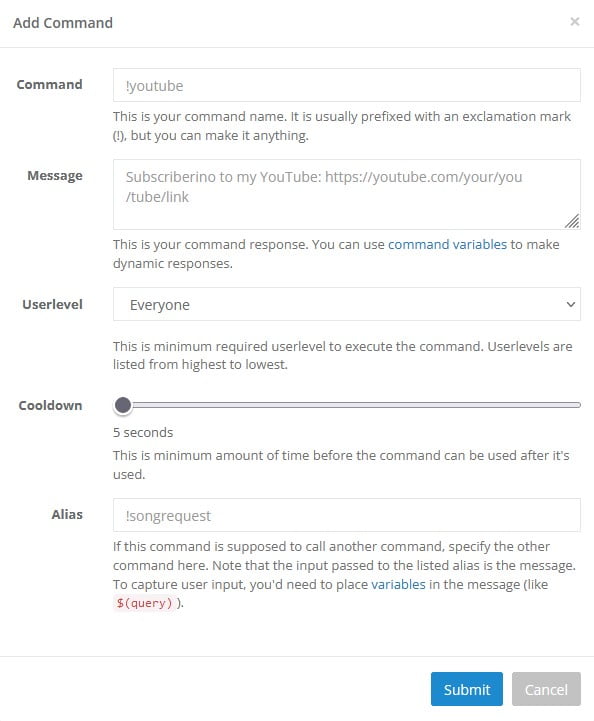
Here’s a picture of how adding a command on Nightbot works. Can you see that you can put any link in there that you want? It can be an easy way for people to find you anywhere on the internet.
StreamElements commands
Another option to use more (custom) Twitch commands besides Nightbot, is Streamelements. When you know that a streamer is using Streamelements (you can check this out by typing ‘’/mods’’) there’s a high chance that the following Streamelements commands will work. As a streamer, you can determine which Streamelements commands are active. And as a viewer, you could try these out if you like to!
P.S. After this I will explain the difference between Nightbot and Streamelements. You can use both of them, but many streamers also decided to use just one. It depends on your preferences.
!accountage
When you’d like to know how long an account exists, you can type ‘’!accountage’’ and then the username of a person. Or only ‘’!accountage’’, then you will see it for yourself.
!followage
The same as with the previous Twitch command, with ‘’!followage'' you can see how long you or someone else is following the channel. It can say something about how loyal someone is (or how good he/she knows the streamer).
!next or !skip
A lot of people make use of song requests in their stream. This means that the music you hear is chosen by the viewers. If they do have song requests, it’s usually clear that you can use ‘’!songrequests’’ or skip a certain song by typing ‘’!next’’ or ‘’!skip’’.
!uptime
Uptime shows how long a streamer is live. Maybe you want to get an indication of how far someone is at doing a 24-hour stream or if the stream is coming to an end or not.
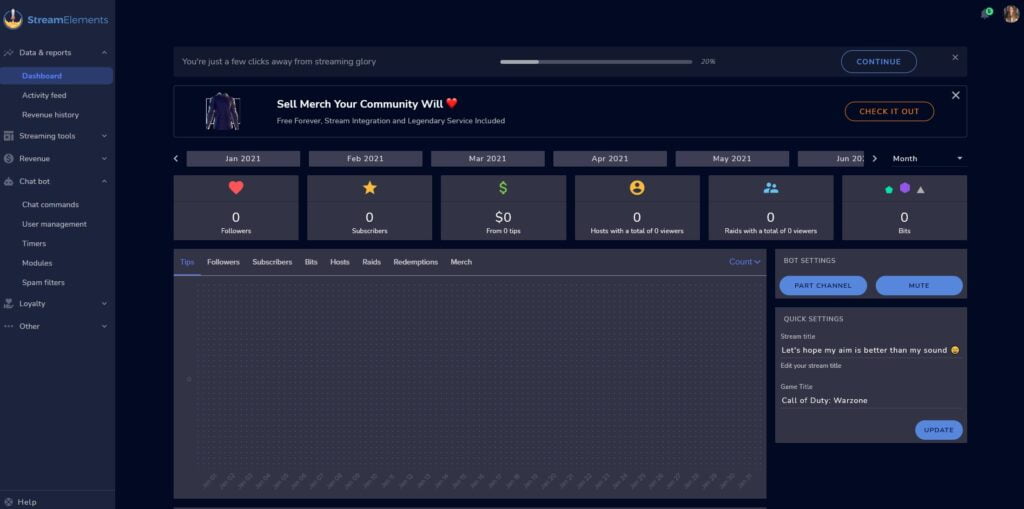
To give you an idea of what StreamElements looks like, here’s a picture.
StreamElements vs Nightbot: Differences Explained
What is the exact difference between StreamElements and Nightbot? I’d say, StreamElements is much more advanced. Nightbot is just a chatbot that makes you able to automate your live stream’s chat. It helps you to moderate the stream and add some extra features. StreamElements on the other hand is much more than that. It's an all-in-one toolset that not only has a chatbot, but also stream overlays, post-stream reports, a tipping system, and much more. You can analyze the data of your stream such as the number of followers over time or the revenue history, and even create leaderboards for the most loyal viewers, for example.
Followage
Followage means the time how long someone has been following a streamer. Did you know that there’s also a website to check how long someone follows a streamer? This is https://twitch.center/follow. Usually, it’s also possible to check this in the stream itself by typing ‘’!followage’’.
Now, you are all set up to start using Twitch commands. If this was helpful, I’d love to hear this in the comments.
I think these articles will be helpful for you too: